

Tax Rates and Your Product Catalog: Save Time on Every Quote
Pre-configure your tax rates and adjust the built-in product catalog so creating quotes and invoices takes seconds, not minutes.
Nobody wants to type "Install standard duplex outlet — $85/each" for the hundredth time. Your catalog and tax presets exist so you don't have to.
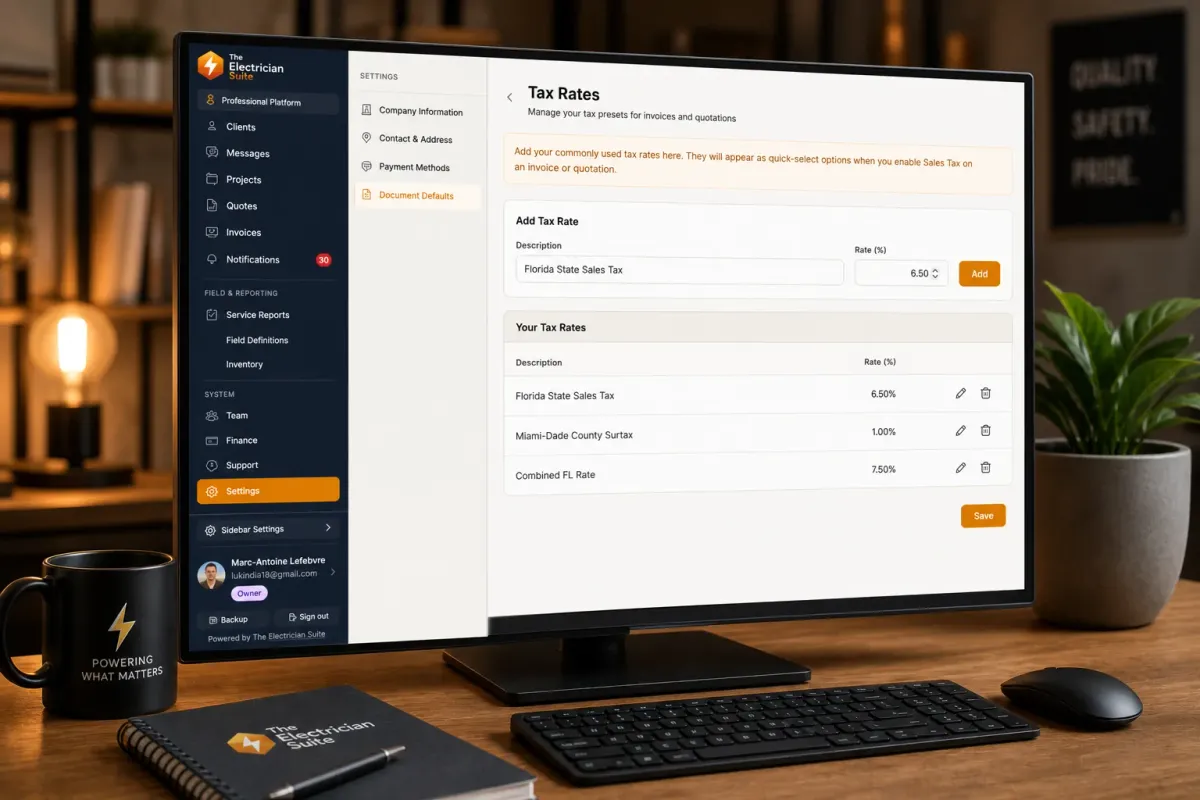
Tax presets
Go to Settings → Tax Rates.
Add your common tax rates — for example, "State Sales Tax — 6.25%" or "County Tax — 1.5%". Give each one a short description and the percentage.
When you create a quote or invoice and enable sales tax, these presets appear in a dropdown. Pick one and it applies instantly. You can still type a custom rate on any document — presets just save clicks.
If you don't collect sales tax, skip this entirely.
Your product and service catalog
Go to Settings → Products & Services.
Good news: the platform ships with a default catalog of common electrical items — outlets, switches, panels, wire, labor rates. You don't start from zero.
What to do first:
Adjust prices. The defaults are generic. Update them to match your actual rates.
Check units. Each item has a unit: "each," "hour," "foot," "job," "lot," etc. Make sure they match how you actually bill.
Review categories. Items are grouped by Labor, Service, Material, Equipment, Permit, or Other. Useful for filtering.
Adding your own items:
Click Add Item. Fill in the name, description, sell price, and unit. Optionally add a cost price (the system calculates your margin automatically), manufacturer, part number, and notes.
Importing in bulk:
If you have a spreadsheet of your materials and prices, use Import CSV. Format your file with columns for name, description, price, unit, and category.
How it works in practice
When you create a quote or invoice and add a line item, you search your catalog. Select "Panel Upgrade 200A," and the name, description, price, and unit auto-fill. Change the quantity, and you're done.
Quick tip
Mark items as taxable in the catalog if they always have sales tax applied. When you add them to a document with tax enabled, the tax calculates automatically.
Ready to streamline your workflow?
Try The Electrician Suite—built for trade professionals who want to work smarter.